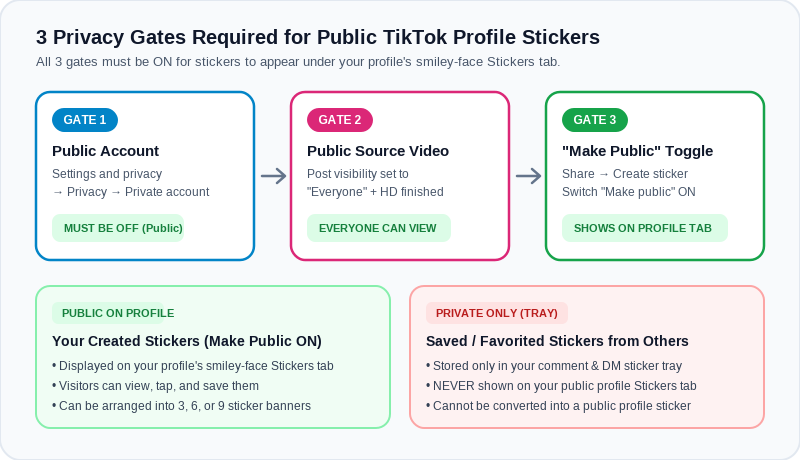
To make stickers public and visible on your TikTok profile, three settings must all be turned on: your TikTok account must be Public, the source video must be posted to Everyone, and you must enable the "Make Public" toggle right before tapping Create sticker. Once saved, TikTok automatically displays the sticker under the smiley-face Stickers tab on your profile page.
If you tried saving stickers from comments or toggling settings and still nothing appears on your profile, you are not alone. Most creators hit one of two hidden rules that TikTok never explains clearly inside the app: the three-gate privacy chain and the difference between created stickers versus saved/favorite stickers.
Step-by-Step: How to Make Stickers Public on Your TikTok Profile
Follow this exact sequence to publish a sticker so every profile visitor can view, tap, and collect it.
Step 1: Confirm Your Account Is Public
Private accounts cannot expose a public Stickers library to non-followers—and on many app versions, private accounts hide the Make Public switch completely.
- Open your TikTok Profile and tap the ☰ menu in the top-right corner.
- Go to Settings and privacy → Privacy.
- Ensure Private account is switched OFF.
Step 2: Use a Public Video Post
TikTok only creates public profile stickers from videos set to Everyone.
- Upload a short video (3 to 5 seconds works best—or convert a photo into a 3-second MP4 using our free TikTok Sticker Banner Maker) and set Who can watch this video to Everyone.
- Wait 10–30 seconds after posting so TikTok finishes HD processing.
- If you want to create a sticker from another creator's video, their account must also allow sticker creation under their privacy settings.
Step 3: Turn On the "Make Public" Toggle When Creating the Sticker
- Open the public video and tap the Share arrow on the right side.
- Scroll the bottom action bar and tap Create sticker. (If the button is missing, jump to our 3 fixes when TikTok stickers are not showing.)
- Trim the clip or adjust the crop frame, then tap Next.
- Look for the "Make public" toggle on the confirmation screen and switch it ON.
- Tap Create sticker (or Save).
Step 4: Verify Visibility Under Your Profile's Stickers Tab
Go back to your Profile and tap the smiley-face icon above your video grid. Every sticker published with Make public enabled appears here in a 3-column grid that visitors can browse and save.
Why Saved & Favorite Stickers Do Not Show on Your Profile
One of the most common frustrations on TikTok is searching for how to show favorite stickers on TikTok profile or how to display saved stickers on profile. Here is how TikTok separates the two libraries:
| Sticker Type | Where It Lives | Visible to Profile Visitors? | Can Be Made Public on Your Profile? |
|---|---|---|---|
| Created Public Sticker | Profile Stickers tab (smiley-face icon) | Yes | Yes (when Make Public is ON) |
| Created Private Sticker | Your personal DM & comment sticker tray | No | Not directly—must recreate with Make Public ON |
| Saved / Favorite Sticker (from other users or comments) | Your personal Favorites / sticker tray | No | No (TikTok blocks republishing others' saved stickers on your tab) |
Key takeaway: Favoriting a sticker in a comment section only bookmarks it for your own replies and direct messages. If you want a specific meme, anime clip, or graphic displayed publicly on your profile Stickers tab, you need to create it from a public video post yourself.
Want ready-made loops you can publish to your public Stickers tab in minutes? Browse our 50+ Free TikTok Sticker Banner Templates—all pre-formatted as 720×720 looping clips with zero watermark.
Common Visibility Problems & Real Fixes
1. "I already made the sticker, but forgot to turn on Make Public"
TikTok currently does not let you edit an existing private sticker to make it public afterward. Open your public source video again, tap Share → Create sticker, switch Make public ON, and save the new public version.
2. "My sticker shows on my profile, but disappeared after I privated the video"
Public profile stickers remain linked to their source video's permissions. If you switch the original video to Only me or delete it, TikTok may hide or remove the corresponding sticker from your public tab. Keep your source posts set to Everyone if you want the Stickers tab to stay visible.
3. "I only see [sticker] in brackets instead of the image"
If comments or sticker previews show literal [sticker] text, your TikTok app is outdated. Update TikTok in the Apple App Store or Google Play Store, force-close the app, and reopen it.
4. "I want my public stickers to form a seamless 3, 6, or 9 profile banner"
Once you can publish public stickers reliably, turning your Stickers tab into a panoramic banner only takes two technical details:
- Export every tile at the exact 720×720 pixel grid dimensions with 7.3% gap compensation (see the TikTok Sticker Size Chart).
- Upload and create the stickers in reverse 3-2-1 order so the newest sticker lands top-left (see the 3/6/9 Sticker Banner Order Guide).
You can skip manual cropping and video conversion completely by uploading any photo, GIF, or video to our TikTok Sticker Banner Maker, which generates numbered 720×720 MP4 slices locally in your browser.
Frequently Asked Questions
How do I make my stickers public on TikTok?
Ensure your TikTok account is set to Public, post a public video (Everyone), tap Share → Create sticker, and turn the Make Public switch ON before saving. Your sticker will then appear under the smiley-face Stickers tab on your profile.
Can I show saved or favorite stickers on my TikTok profile?
No. Saved or favorited stickers stay inside your private sticker tray for comments and DMs. Only stickers you create yourself with Make Public enabled appear on your public profile Stickers tab.
Can I change an already private TikTok sticker to public later?
No—TikTok does not offer a retroactive public toggle for private stickers. Reopen the public source video, run Share → Create sticker again, and enable Make Public before saving.
Why do I see [sticker] text instead of the actual sticker on TikTok?
Literal [sticker] placeholders mean your TikTok app version is outdated and cannot render newer sticker formats. Updating the app from the App Store or Google Play fixes it.
Why is the Create sticker option missing when I tap Share?
Turn on Animated thumbnail under Settings and privacy → Accessibility, restart TikTok, and make sure the video is Public and finished processing. See our full TikTok Stickers Not Showing: 3 Fixes guide if the button still does not appear.