Because TikTok's Stickers tab displays your newest sticker at the top-left and pushes older stickers to the right and down, you must upload and create every TikTok sticker banner in strict reverse order—starting from the bottom-right tile and finishing at the top-left tile.
For a 3-sticker row, upload Right → Center → Left (3-2-1). For 6-sticker and 9-sticker grids, work right-to-left starting on the bottom row and finish on the top-left corner.
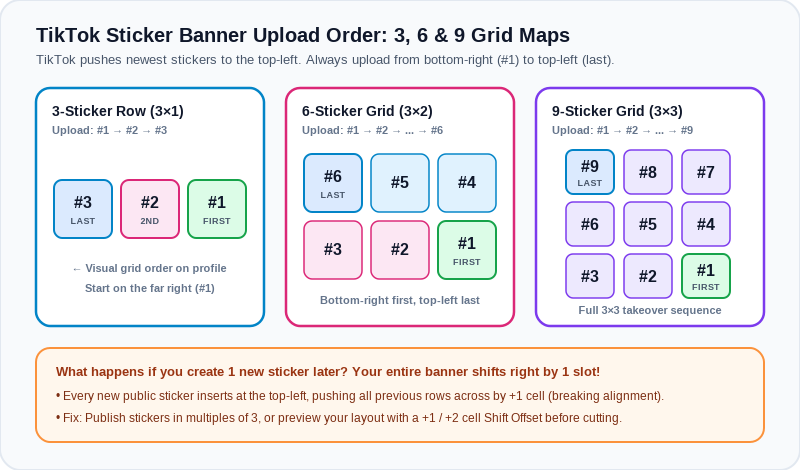
Exact Upload Order Charts (3, 6 & 9 Sticker Grids)
The number inside each cell below shows which step to upload and convert into a sticker (#1 = upload FIRST, highest number = upload LAST).
1. 3-Sticker Banner Order (3 × 1 Row)
| Profile Grid Position | Left Slot | Center Slot | Right Slot |
|---|---|---|---|
| Upload & Create Step | Step #3 (Last) | Step #2 | Step #1 (First) |
2. 6-Sticker Banner Order (3 × 2 Grid)
| Profile Row | Left Column | Center Column | Right Column |
|---|---|---|---|
| Top Row (Row 1) | Step #6 (Last) | Step #5 | Step #4 |
| Bottom Row (Row 2) | Step #3 | Step #2 | Step #1 (First) |
3. 9-Sticker Banner Order (3 × 3 Full Grid)
| Profile Row | Left Column | Center Column | Right Column |
|---|---|---|---|
| Top Row (Row 1) | Step #9 (Last) | Step #8 | Step #7 |
| Middle Row (Row 2) | Step #6 | Step #5 | Step #4 |
| Bottom Row (Row 3) | Step #3 | Step #2 | Step #1 (First) |
Important: Order is determined by when you tap "Create sticker" (not just when the video finishes uploading). If you batch-upload all 3, 6, or 9 videos first, wait for them to finish processing, then tap Share → Create sticker strictly in
#1 → #2 → #3...order, spacing each creation by 5–10 seconds so timestamps never collide.
How to Fix a Backwards or Out-of-Order Sticker Banner
Can You Rearrange TikTok Stickers Without Deleting Them?
No. TikTok locks your profile's Stickers tab strictly by creation timestamp and provides no drag-and-drop rearrange button. If your banner came out backwards or scrambled, you must delete and recreate the misplaced tiles.
Minimum-Delete Recovery Rule (Save Time!)
You do not always have to wipe the entire banner:
- Scenario A — Only your very last tile (top-left) is wrong: Delete only that 1 sticker, then recreate the correct top-left tile. Everything else stays aligned.
- Scenario B — You swapped two tiles in the middle (e.g., #4 and #5 in a 6-grid): Delete every sticker from the earliest wrong step onward (#4, #5, and #6). Leave #1, #2, and #3 untouched, then recreate #4 → #5 → #6 in order.
- Scenario C — You uploaded the entire 3-sticker row left-to-right (backwards): Delete all 3 stickers and recreate them starting with the right-most piece first.
How to Delete a Misplaced Sticker
- Open your Profile and tap the smiley-face Stickers tab.
- Tap the misplaced sticker tile.
- Open its options menu (⋯ or trash icon) and tap Delete. (If needed, also delete the duplicate source video post so your feed stays tidy.)
How to Prevent New Stickers From Shifting Your Banner
A common surprise happens days later: you create 1 new standalone sticker, and suddenly your perfectly aligned 3-row banner shifts one slot to the right, splitting every row across the edges!
Because TikTok always inserts new public stickers into Slot #1 (top-left), you have two ways to stay aligned:
- Publish in multiples of 3: Adding 3 new stickers (a full row) pushes your existing banner cleanly down by exactly one full row without breaking horizontal alignment.
- Use Shift Offset (+1 or +2 cells): If you already have 1 or 2 loose stickers at the top of your Stickers tab that you do not want to delete, open our TikTok Sticker Banner Maker, set Shift Offset to
+1or+2to preview where your banner will sit, or export with numbered step badges (tiktok-sticker-step-1.mp4first) so you never lose track of order again.
Related Guides to Complete Your Banner
- Check exact pixel dimensions and 7.3% gap math: TikTok Sticker Size & 3/6/9 Dimensions
- Make sure every tile shows publicly on your profile tab: How to Make TikTok Stickers Public
- Grab pre-cut anime, meme, lo-fi, and cyberpunk loops: 50+ Free TikTok Sticker Banner Templates
Frequently Asked Questions
What is the correct upload order for a 3-sticker TikTok banner?
Upload and create stickers in reverse order (3-2-1): create the far-right tile first (#1), center tile second (#2), and far-left tile last (#3).
What is the upload order for a 6-sticker or 9-sticker TikTok banner?
Always start at the bottom-right corner (#1) and move right-to-left across each row, finishing at the top-left corner (#6 for a 6-grid, #9 for a 9-grid).
Can you rearrange TikTok stickers without deleting them?
No. TikTok does not allow dragging or reordering stickers on your profile. You must delete any out-of-order stickers and recreate them in the right sequence.
If I uploaded one tile in the wrong order, do I have to delete the whole banner?
No—you only need to delete the earliest misplaced sticker and any newer stickers created after it. Earlier tiles that are already in the right bottom/right positions can stay.
Why did my entire sticker banner shift out of alignment after I posted a new sticker?
Every new public sticker enters at the top-left slot and pushes all older stickers right by one cell. Add new stickers in multiples of 3 to push existing banners down by full rows cleanly.